01Split-screen story
READY TO PLAYKeyboard: space or K to play and pause, arrow keys to skip five seconds, M for sound, P for Picture-in-Picture, F for fullscreen.
0:00 / 0:10
Build video ads from the first brief to the final render.
Create scenes, add audio and produce the variations you want to test.
Your brief, scenes, sound and final video — connected from the first idea to the last frame.
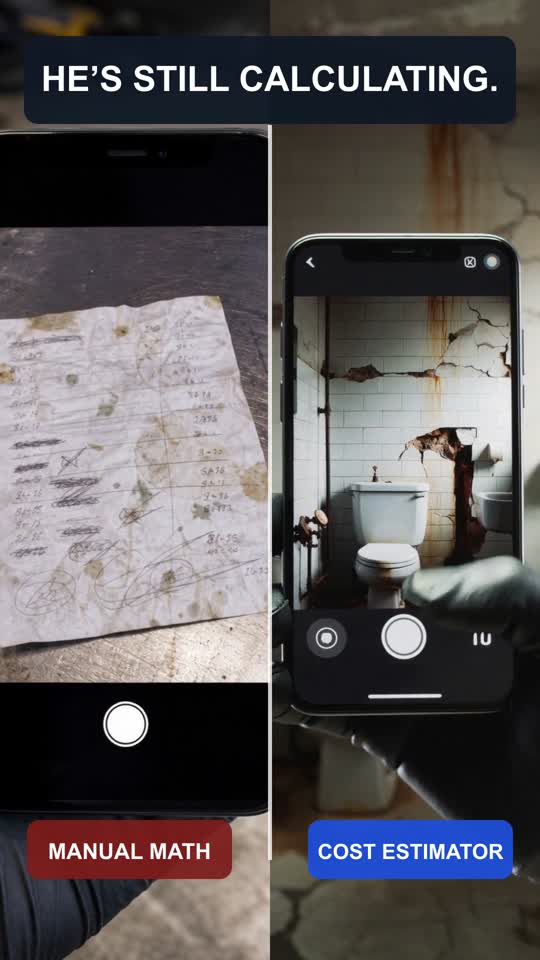 EXISTING CREATIVE / PREVIEW FRAME
Footage · On-screen text · Transition
Explore the workflow with the steps on the left. This demo does not generate or publish anything.Open the real workspaceBring footage, product screens and captions into the same timeline. Refine one scene without losing the whole story.
Keep the brief, source assets, review and final export connected in one production flow.
Start with a brief, a reference or an existing creative. Organize ideas around the message you want to test.
Build scenes, add product visuals, refine copy and tune music. Create variations without losing the original.
Inspect the preview, render your video and check the final artifact. Know which version you are looking at.
Select your creatives and destination. Publish new ads paused, then activate them when you are ready.
Change the message, format or language while the product truth stays connected. Try the example below.
Keep products, marketing angles, assets and creative versions together. Find the right creative, not just the right filename.
Connect an AI assistant through MCP to inspect recipes, make scoped edits and manage your production workflow.
Adapt messages and languages while keeping your product context and source creative connected.
Separate creative review from publishing. New Meta ads are created paused, with checks before batch actions.
Adjust a hook, a scene, a CTA or an audio track without starting the whole creative over.
Build, review and render the next video without losing the source,
the context or the approved version.
Static images, semi-static creatives and multi-scene videos. Keep the source recipe, visual assets, audio and versions in one workspace.
Yes. Work from existing assets or an existing creative, then make targeted changes to scenes, messaging, audio and variations.
Yes. Creative Hub exposes an MCP interface for supported creative operations. Your assistant works with the same recipes and assets as the editor.
No. New Meta ads are created paused. Campaign access and the destination must be configured, and activating ads remains a separate decision.
This is the public product website. “Open workspace” takes you to the existing, protected Creative Hub. No workspace access key is shared on this page.